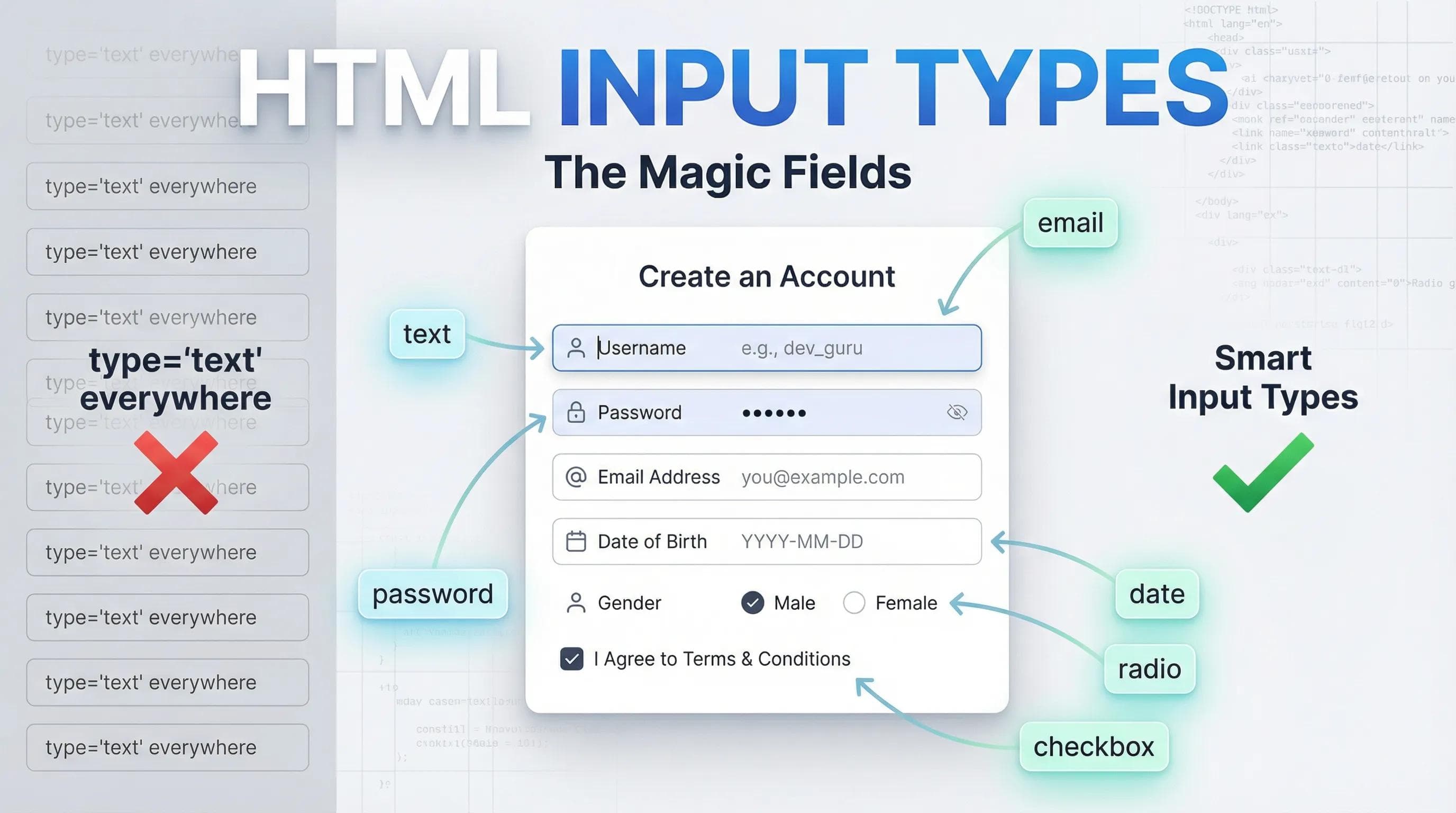
Not All Boxes Are Equal
In the previous blog, we built a "Contact Form". It worked, but it was... dumb. We used
<input type="text"> for everything.
- If the user typed a Password, it showed plain text (Security risk!).
- If the user typed a Date, they had to manually write "12/01/2026" (Bad User Experience).
- If the user typed an Email, the mobile keyboard didn't show the
@symbol.
HTML is smarter than that. By simply changing the
type attribute, we can transform a boring box into a magic field.In this blog, we will master the Input Types that control how users interact with your website.
1. Privacy First: Text vs. Password
The most basic requirement of any website is a Login system.
The Problem: If you use
type="text", anyone standing behind the user can see their password. The Solution: Use type="password".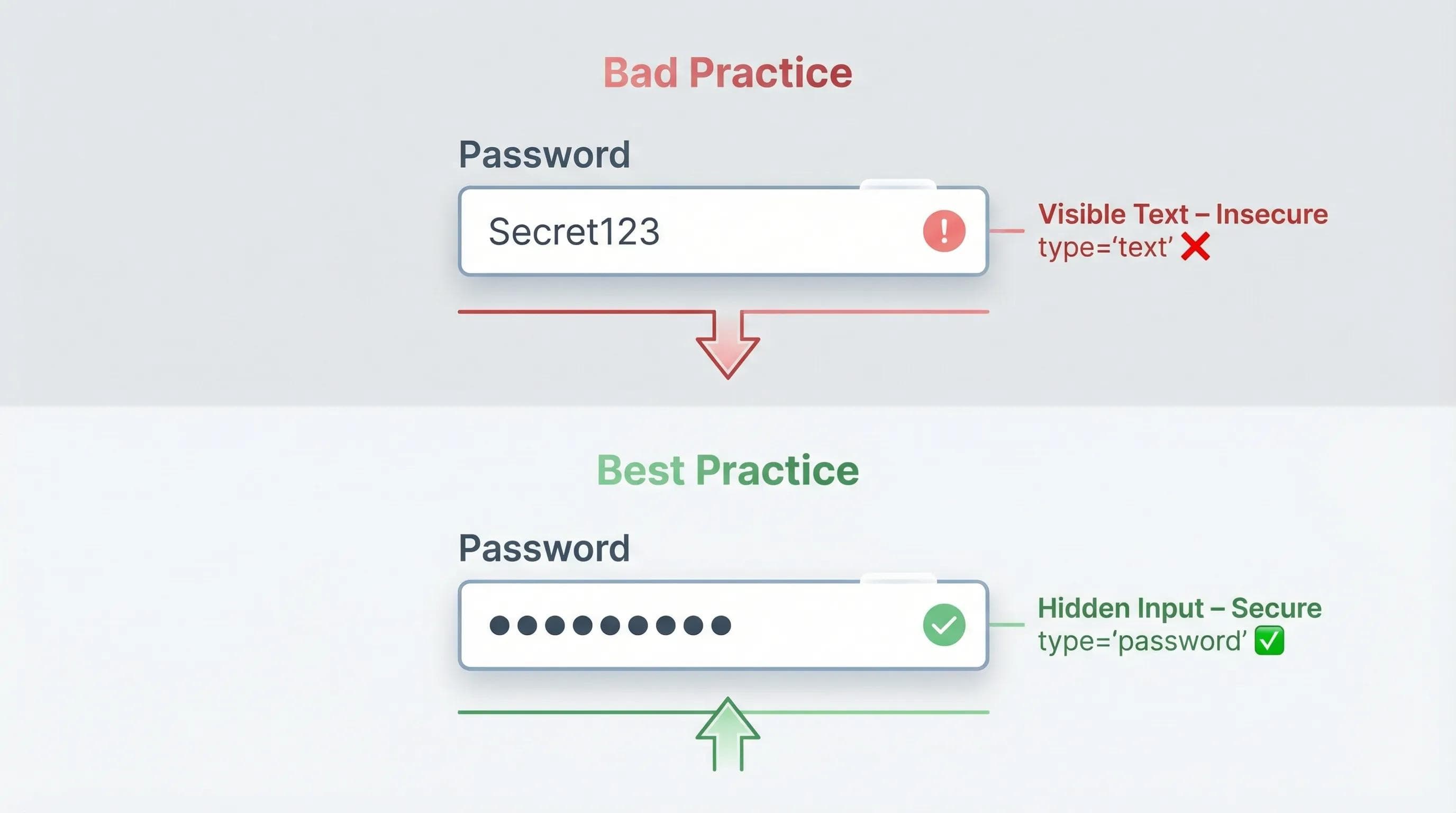
html
<label for="user">Username:</label>
<input type="text" id="user" name="username">

<label for="pass">Password:</label>
<input type="password" id="pass" name="password">2. Email & Number
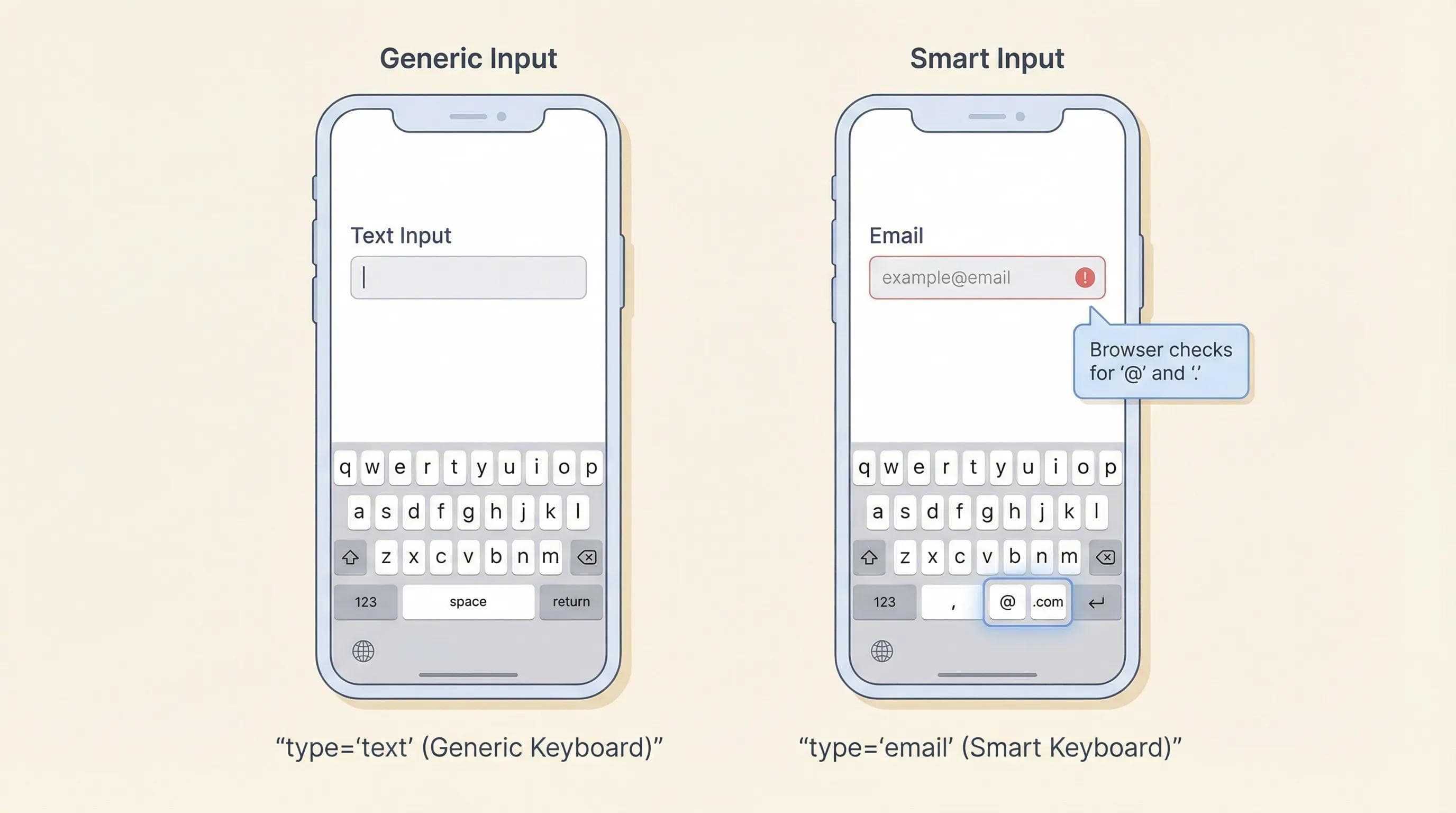
This is where you earn the respect of your users. Have you ever tried to type your email on a phone, and you had to switch keyboards just to find the
@ symbol? That is bad development.HTML talks to the Mobile Operating System (iOS/Android).
type="email": Automatically opens a keyboard with the@and.combuttons.type="number": Automatically opens the Numeric Keypad (0-9). It also prevents users from accidentally typing "ABC" in a phone number field.
html
<label for="mail">Email:</label>
<input type="email" id="mail" name="email">

<label for="age">Age:</label>
<input type="number" id="age" name="age">
type="email" also performs a basic check. If the user forgets the @ symbol and tries to submit, the browser will automatically show a red warning!
3. Date Picker
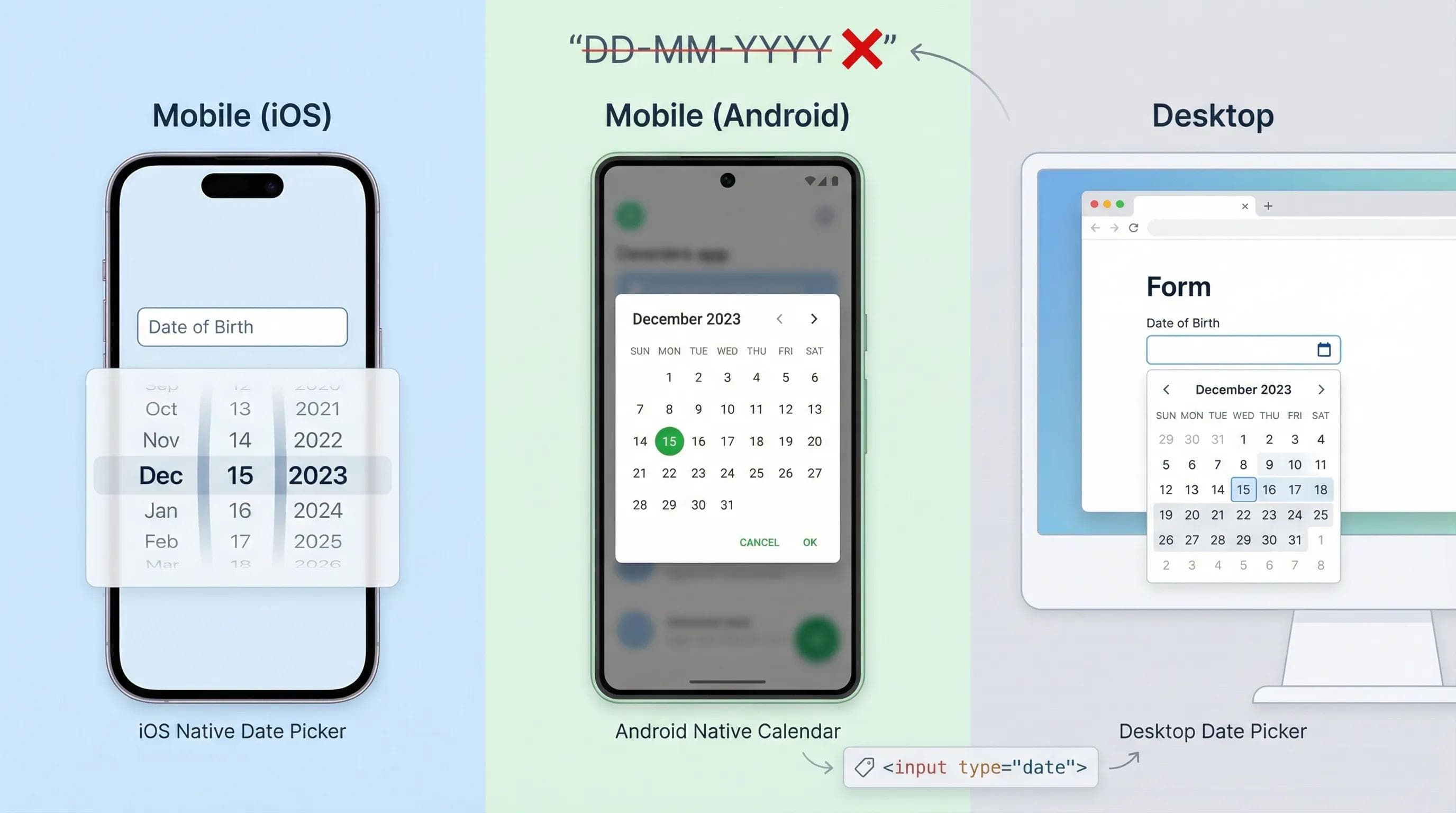
Stop asking users to type dates like "DD-MM-YYYY". They will mess it up. Some will use dashes
-, some will use slashes /.Use
type="date".The Magic: This triggers the device's Native Calendar.
- On iPhone, it looks like the iOS spinner.
- On Android, it looks like the Android calendar.
- On Desktop, a dropdown calendar appears.
html
<label for="dob">Date of Birth:</label>
<input type="date" id="dob" name="dob">
4. Checkbox vs. Radio Button
This is the most confusing part for beginners. Both look like "Selectable Options," but they follow different laws of logic.

The Checkbox (The "And" Logic)
Analogy to make it easy to understand: Pizza Toppings. You can want Cheese AND Mushroom AND Peppers. You can select Multiple options.
- Shape: Square box.
html
<p>Select your hobbies:</p>
<input type="checkbox" id="code" name="hobby" value="coding">
<label for="code">Coding</label>

<input type="checkbox" id="read" name="hobby" value="reading">
<label for="read">Reading</label>
The Radio Button (The "Or" Logic)
Analogy: Gender or Payment Method. You can be Male OR Female (in a binary form). You can pay via Card ORCash. Not both. You can select Only One option.
- Shape: Round circle.
html
<p>Select Gender:</p>

<input type="radio" id="male" name="gender" value="male">
<label for="male">Male</label>

<input type="radio" id="female" name="gender" value="female">
<label for="female">Female</label>
CRITICAL WARNING (The name Attribute)
For Radio buttons to work as a group (where clicking one deselects the other), they MUST share the exact same name. Correct: name="gender" on both inputs. Wrong: name="gender1" and name="gender2".
The AI Angle: UX is Your Job
If you ask AI to "Create a form," it often defaults to
type="text" for everything because it's technically valid.- AI cares about code running.
- You care about the User Experience (UX).
If a user has to type a date manually, they will leave your website. AI won't fix that; you have to.
Practical Task: The Ultimate Registration Form
Let's combine everything into a "Signup Page".
Step 1: Create a new file
signup.html. Step 2: Add the boilerplate.
Step 3: Write this code inside
<body>.🛑 STOP! DO NOT COPY PASTE! You need to feel how the type attribute changes the behavior. Type this code manually to build muscle memory.html
<h1>Create Account</h1>
<form>
    <div>
        <label for="username">Username:</label>
        <input type="text" id="username" name="user">
    </div>
    <br>

    <div>
        <label for="password">Password:</label>
        <input type="password" id="password" name="pass">
    </div>
    <br>

    <div>
        <label for="email">Email Address:</label>
        <input type="email" id="email" name="email">
    </div>
    <br>

    <div>
        <label for="dob">Date of Birth:</label>
        <input type="date" id="dob" name="dob">
    </div>
    <br>

    <div>
        <p>Gender:</p>
        <input type="radio" id="m" name="gender" value="male">
        <label for="m">Male</label>

        <input type="radio" id="f" name="gender" value="female">
        <label for="f">Female</label>
    </div>
    <br>

    <div>
        <input type="checkbox" id="terms" name="terms">
        <label for="terms">I agree to Terms & Conditions</label>
    </div>
    <br>

    <button type="submit">Sign Up</button>
</form>

<hr>
<a href="index.html">Back to Home</a>
Step 4: Open Live Server.
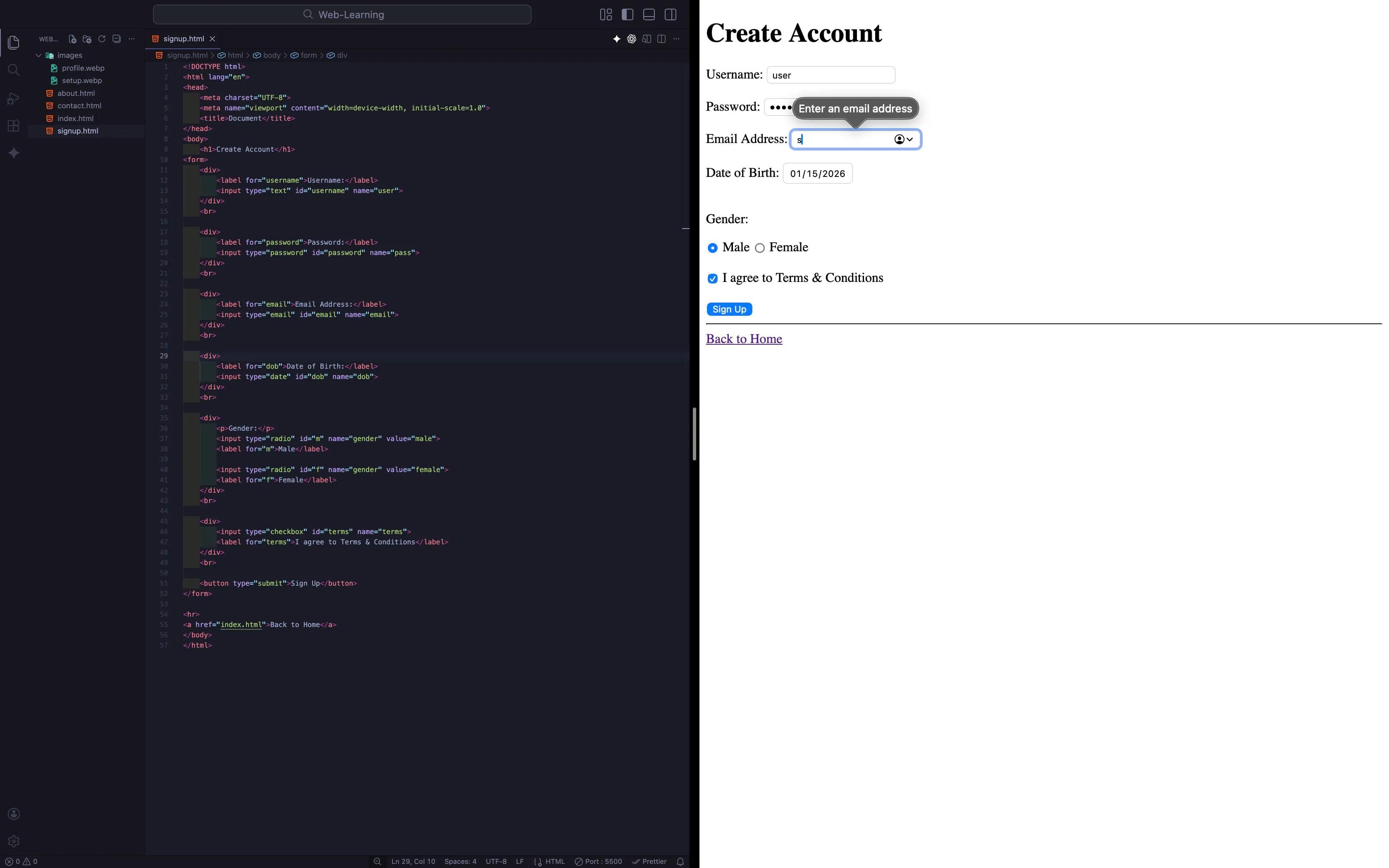
- Try typing letters in the Age/Number field (It won't let you!).
- Try clicking the "Terms" text (It should check the box).
- Try selecting both genders (It should switch between them).
Close the Loop
Before you finish today's session, we have one final task.
Right now, your
signup.html page is an Orphan. It exists, but no one can find it because it is not linked to your Home Page.Task 1: Link it Up
- Go to your
index.html. - Add a link at the top (Navigation area):
<a href="signup.html">Create Account</a>. - Now, try navigating from Home -> Signup -> Home. This is how real websites feel.
Task 2: Break the Rules (The Sandbox) Don't just copy my code. The only way to master coding is to combine concepts.
- Mix Blog 7 (Images) + Blog 12 (Forms): Can you add a small "Avatar" image next to the Username field?
- Mix Blog 9 (Tables) + Blog 12 (Forms): Can you try putting your form inputs inside a Table to align them perfectly? (It’s an old-school trick, but try it!).
- Mix Blog 6 (Links): Can you make the "Terms & Conditions" text a clickable link?
Pro Tips!
Coding is not about memorizing. It is about experimenting. If you don't break your code at least once a day, you aren't learning hard enough!
Conclusion
Your form is now smart. It knows the difference between a password, a date, and an email.
But there is still a risk. Right now, a user can leave the "Password" field empty and click "Sign Up". A user can type "hello" in the email field without an
@.How do we force the user to fill in the data correctly? How do we disable buttons?
In the next blog, "Form Attributes & Validation," we will learn how to secure your forms without writing a single line of JavaScript using the power of
required, placeholder, and disabled.See you in the next post!
You can Read next part from here - READ NOW!
HTML Series: Your First Step in Modern Web Development (2026)
Step 12 of 22