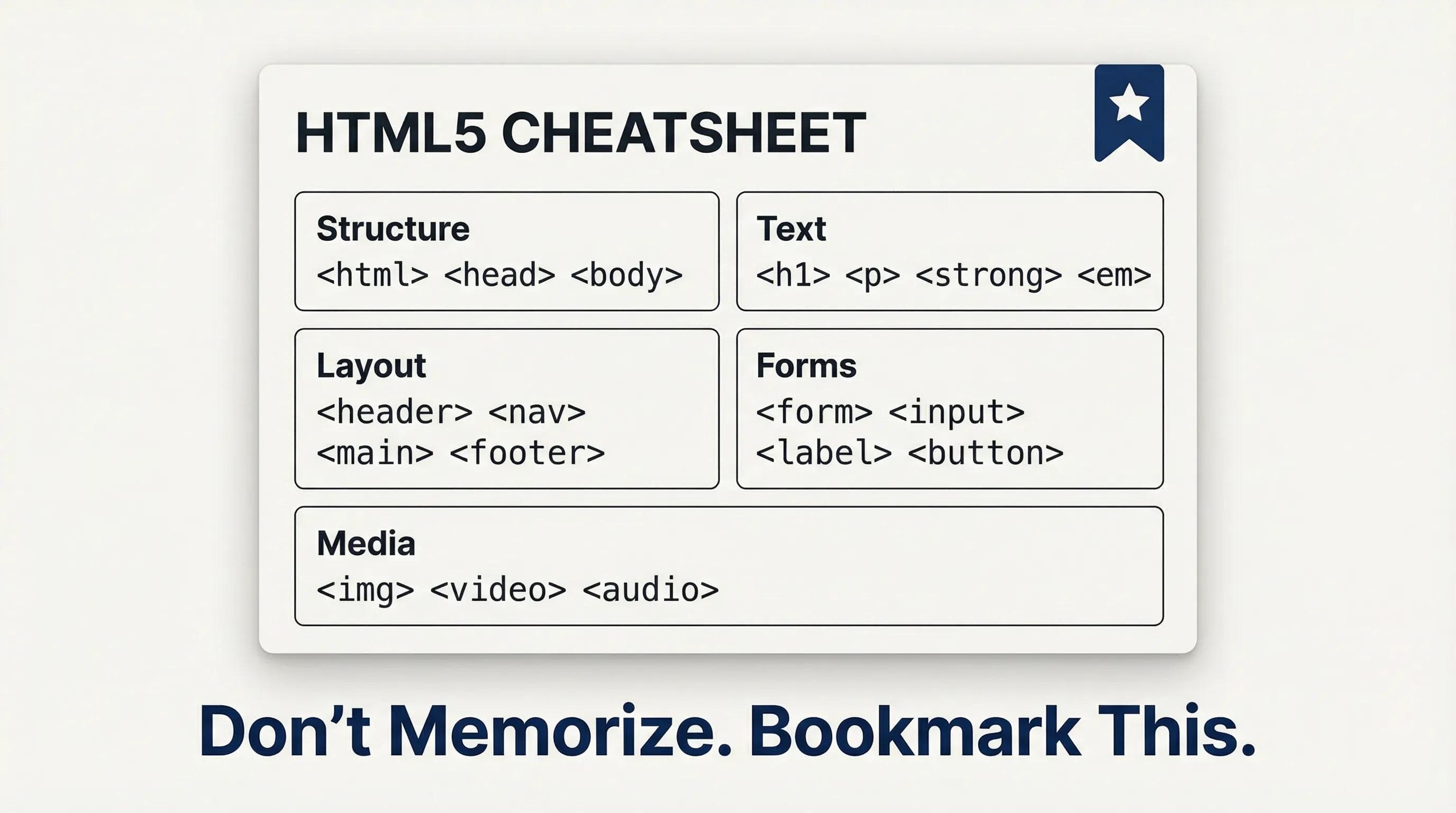
Don't Memorize, Just Reference!
Congratulations! You have officially completed the Learning Phase of HTML. We have built everything:

- Basic Text & Structure
- Forms & Inputs
- Audio, Video, and Maps
- Semantic Layouts
A common myth among beginners is: "I need to memorize every single tag." The Truth: No, you don't. Even Senior Developers at Google look things up. You just need to know where to look.
Bookmark this page right now. This is your dictionary for the future!
1. Document Structure (The Skeleton)
These tags are mandatory. Without them, your file is just a text document, not a webpage.
| Tags | Description |
|---|---|
| <!DOCTYPE html> | Tells the browser "This is HTML5" |
| <html> | The root element. The container for everything |
| <head> | Invisible settings (Meta tags/ Title/ CSS links) |
| <body> | Visible content (What the user sees) |
| <title> | The text on the Browser Tab |
| <meta> | Data about data (SEO/ Viewport/ Charset) |
2. Text Formatting (The Content)
How to structure your words.
| Tags | Description |
|---|---|
| <h1> - <h6> | Headings. <h1> is the main title |
| <p> | Paragraph |
| <br> | Line Break (Enter key) |
| <hr> | Horizontal Rule (Dividing line) |
| <strong> | Bold text (Important) |
| <em> | Italic text (Emphasized) |
| <span> | A container for small text styling (Inline) |
| <blockquote> | For long quotes from other sources |
3. Links & Media (The Connections)
Connecting your site to the world.
| Tags | Description | Important Attributes |
|---|---|---|
| <a> | Anchor (Link) | href / target="_blank" |
| <img> | Image | src/ alt/ width |
| <video> | Video Player | src/ controls/ poster |
| <audio> | Audio Player | src/ controls |
| <iframe> | Embed (YouTube/Maps) | src/ loading="lazy" |
WARNING!
Never forget the alt attribute on <img>. It is critical for SEO and Accessibility.
4. Semantic Layout (The Structure)
Use these instead of generic
<div> tags to make Google understand your content.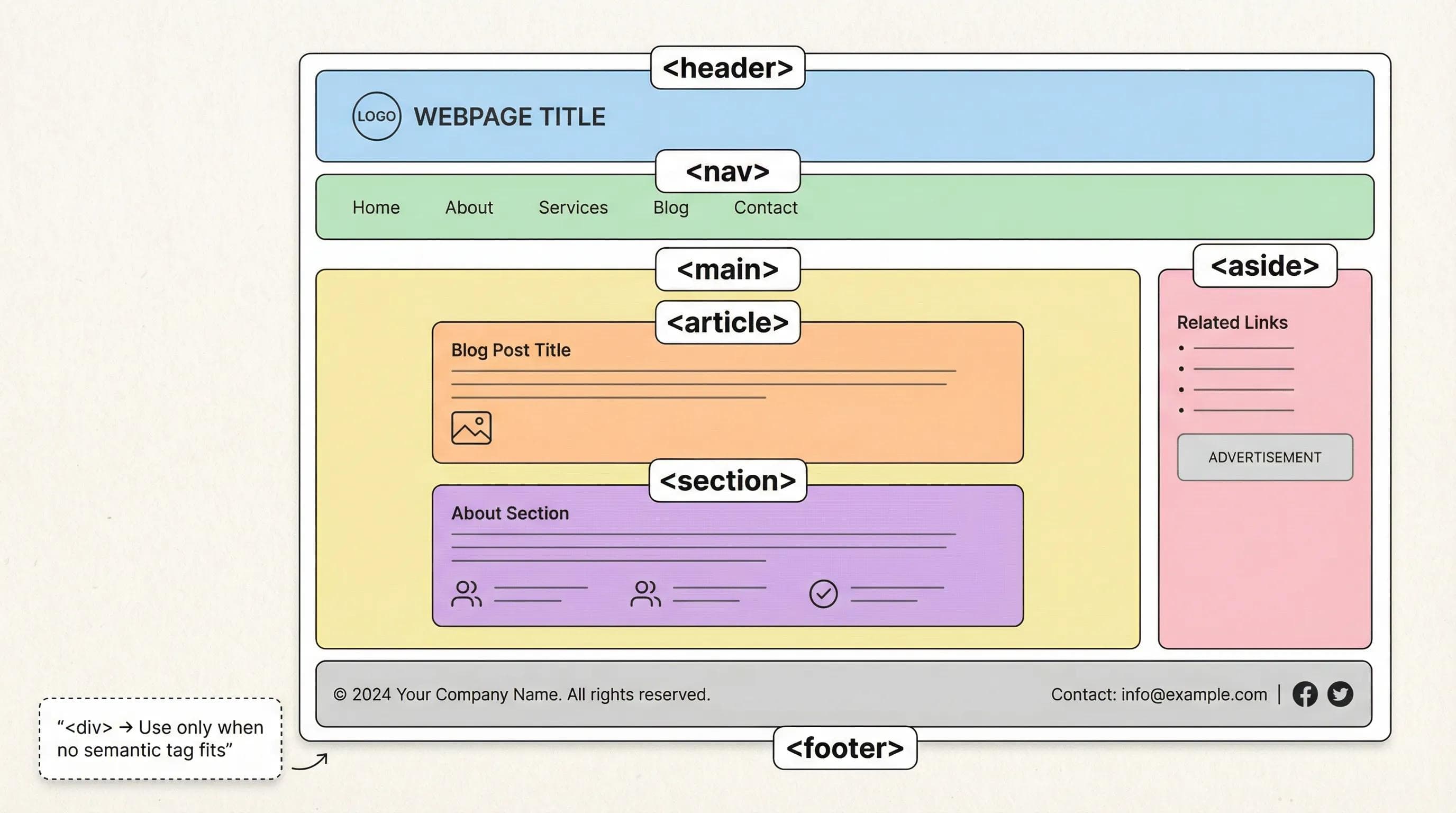
| Tags | Description |
|---|---|
| <header> | Intro section (Logo/ Title) |
| <nav> | Navigation links |
| <main> | The unique content of the page |
| <section> | A group of related content |
| <article> | Independent content (Blog post) |
| <footer> | Copyright and Contact info |
| <div> | Generic container (Use only when others don't fit) |
5. Lists & Tables (The Data)
| Tags | Descriptions |
|---|---|
| <ul> | Unordered List (Bullet points) |
| <ol> | Ordered List (Numbers) |
| <li> | List Item (Must be inside ul/ol) |
| <table> | Wrapper for a table |
| <tr> | Table Row |
| <th> | Table Header (Bold) |
| <td> | Table Data (Standard cell) |
6. Forms (User Input)
How to get data from your users.
| Tags | Description |
|---|---|
| <form> | Wrapper for input fields |
| <input> | The field itself. (type="text"/ password/ email) |
| <label> | The title of the input (for Accessibility) |
| <button> | A clickable button (type="submit") |
| <textarea> | Multi-line text box (Comments) |
7. Special Entities (The Symbols)
Use these codes to prevent your code from breaking
| Symbols | Entity Code |
|---|---|
| < | < |
| > | > |
| © | © |
| Space | |
8. Essential Syntax & Attributes (The Helpers)
These work on almost every tag.
| Code | Description | Example |
|---|---|---|
| `` | Comment. Invisible notes for developers. | `your comment` |
| id="" | Unique Identifier (For CSS/JS). | <h1 id="main-title"> |
| class="" | Group Identifier (For styling multiple items). | <p class="text-red"> |
| title="" | Tooltip text when hovering mouse. | <button title="Click Me"> |
| style="" | Inline CSS (Avoid using this). | <p style="color:red"> |
Is This Everything?
You might be wondering: "Are these the only tags in HTML?"
The answer is : No, these are the ones that matter.
HTML has over 100+ tags (like
<dialog>, <map>, <bdo>, <ruby>). But the 80/20 Rule applies here: You will use 20% of the tags for 80% of your work. The tags listed above are the ones you will use in almost every project.What about the rest? (The Advanced Stuff) There are advanced concepts called HTML5 APIs (like Geolocation, Canvas Graphics, Drag & Drop and more).
Why didn't we learn them?
- Because they require JavaScript logic to work. A
<canvas>tag does nothing without JS code to draw on it.
For the "Completionists" (Optional Download) If you still want the Full Encyclopedia containing every single HTML5 tag, Global Attributes, and Deprecated tags, you can download the list below.
Complete HTML5 Master Guide (PDF)
Get the full list of tags, attributes, and examples everything in one PDF!
File size : 350 KBIMPORTANT NOTE: The list I provided contains every single HTML tag. You might see some tags in there that we haven't discussed yet. Don't Panic. You don't need to know everything today.
- Experiment with the tags you understand.
- If a tag looks confusing (or requires JS), skip it for now. We will learn those advanced tags when we learn Logic.
The AI Angle: Verify, Don't Trust!
AI tools like ChatGPT or Gemini are great at writing code, but they sometimes use Old HTML (like
<center> or <font>) which are banned in HTML5. Your Job: Use this Cheatsheet to audit AI code. If AI gives you a tag that isn't on this list (or looks obsolete), avoid using it.
Conclusion: Phase 1 Completed!
You have done it. You have the Knowledge. You have the Reference Guide. You have the Confidence.
You are now capable of building the skeleton of any website. But before we open the door to CSS (Styling), there is one Final Check remaining.
We need to ensure you are "Interview Ready." It's one thing to write code; it's another to write flawless code that gets you hired.
- Do you know the silly mistakes that expose you as a beginner?
- Can you answer the tricky questions interviewers love to ask?
In the Finale of this Series (Blog 22), we will cover the Most Common HTML Mistakes and the Top Interview Questions. We will wrap up this series by making sure your foundation is rock solid before we start painting with colors.
See you in the final chapter!
You can Read next part from here - READ NOW!
HTML Series: Your First Step in Modern Web Development (2026)
Step 21 of 22