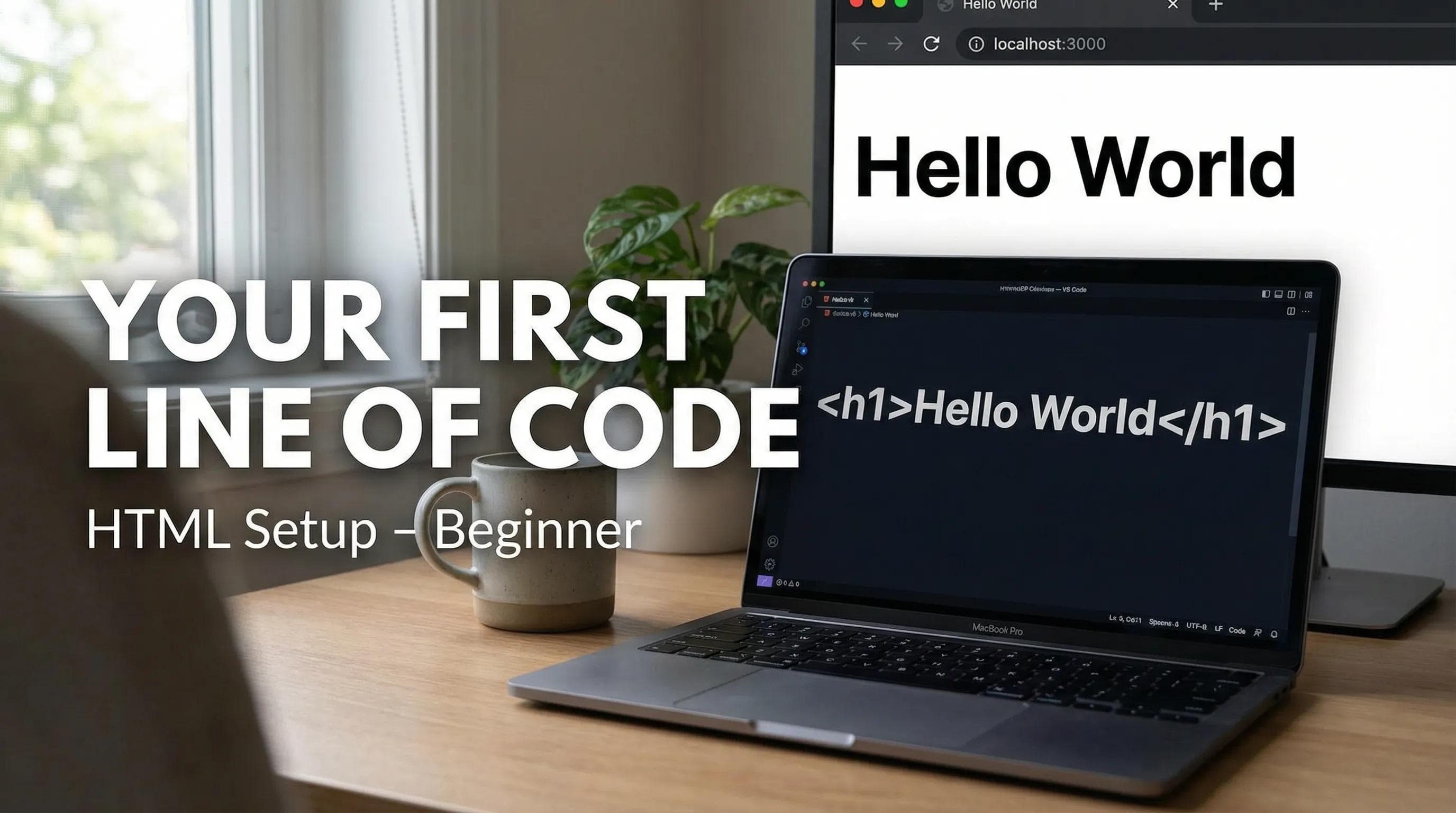
The Theory is Over. It's Time to Build.
In the last post of this series, we used the "Restaurant Analogy" to understand how the web works logically. But knowing the theory isn't enough; you'll need to know how to build it. So today, we'll move from concepts to practice. We will set up the professional tools you need and write your very first line of code.

"It is time to set up your environment and start your coding journey."
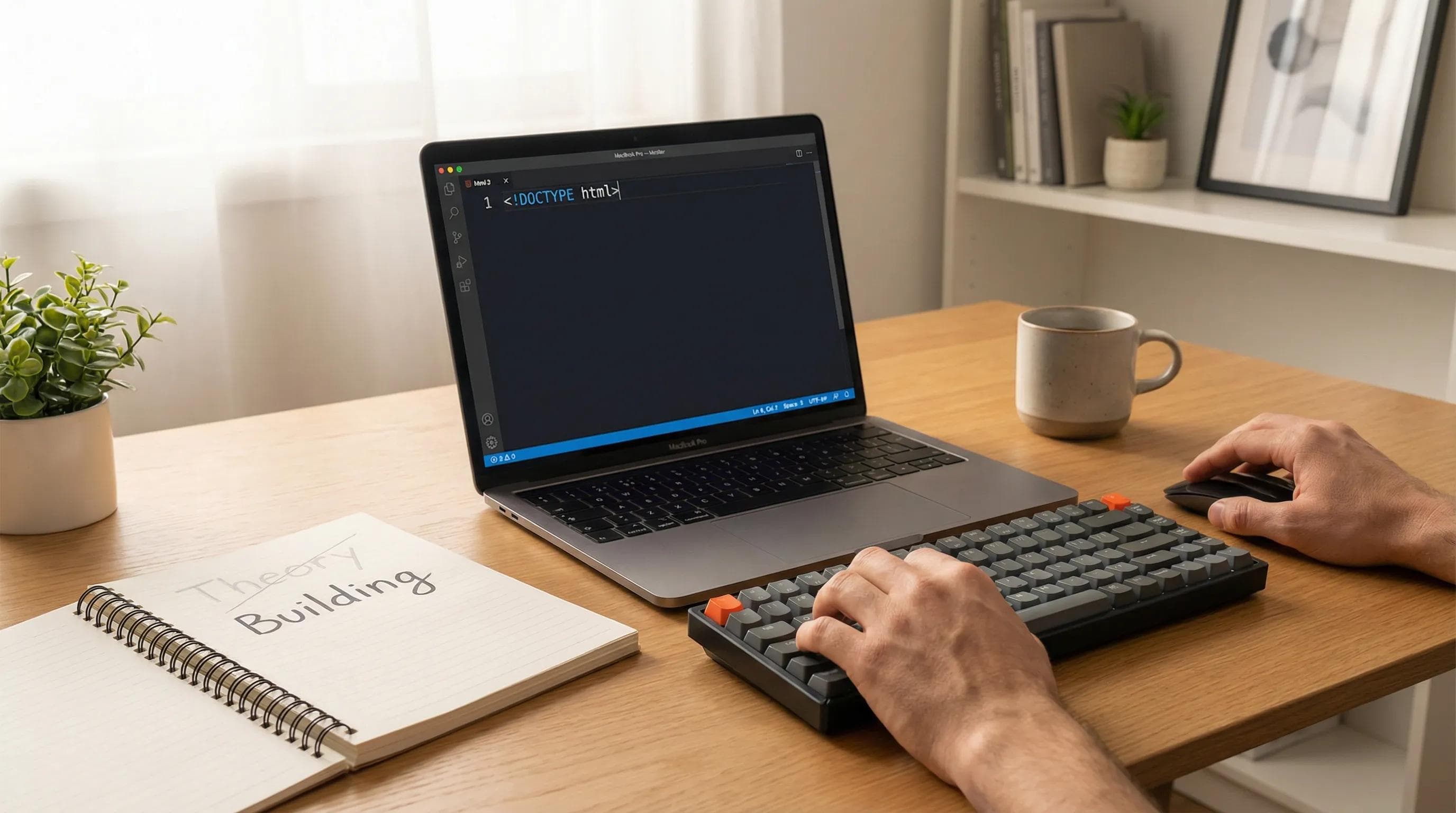
Where Do We Write Code? (Notepad vs. Code Editors)
The most common question beginners ask is: "Can I just use Microsoft Word or Notepad?" The answer is - Technically? Yes. Should you? Absolutely not.
Writing code in Notepad is a little like cutting a steak with a spoon. You can do it, but the experience will be very messy, frustrating, and slow. That's the reason why, Developers use Code Editors, these are special software applications that allow them to write, debug, and compile their websites and apps. And in 2026, the king of code editors is VS Code (Visual Studio Code).
— What makes VS Code so great?
It highlights your code in multiple colors for easy readability. It identifies any spelling errors in your code before running it. And the best part is it is free for anyone to use, and it is the industry standard, being used by engineers at tech giants like Google, Microsoft, Netflix, and others.
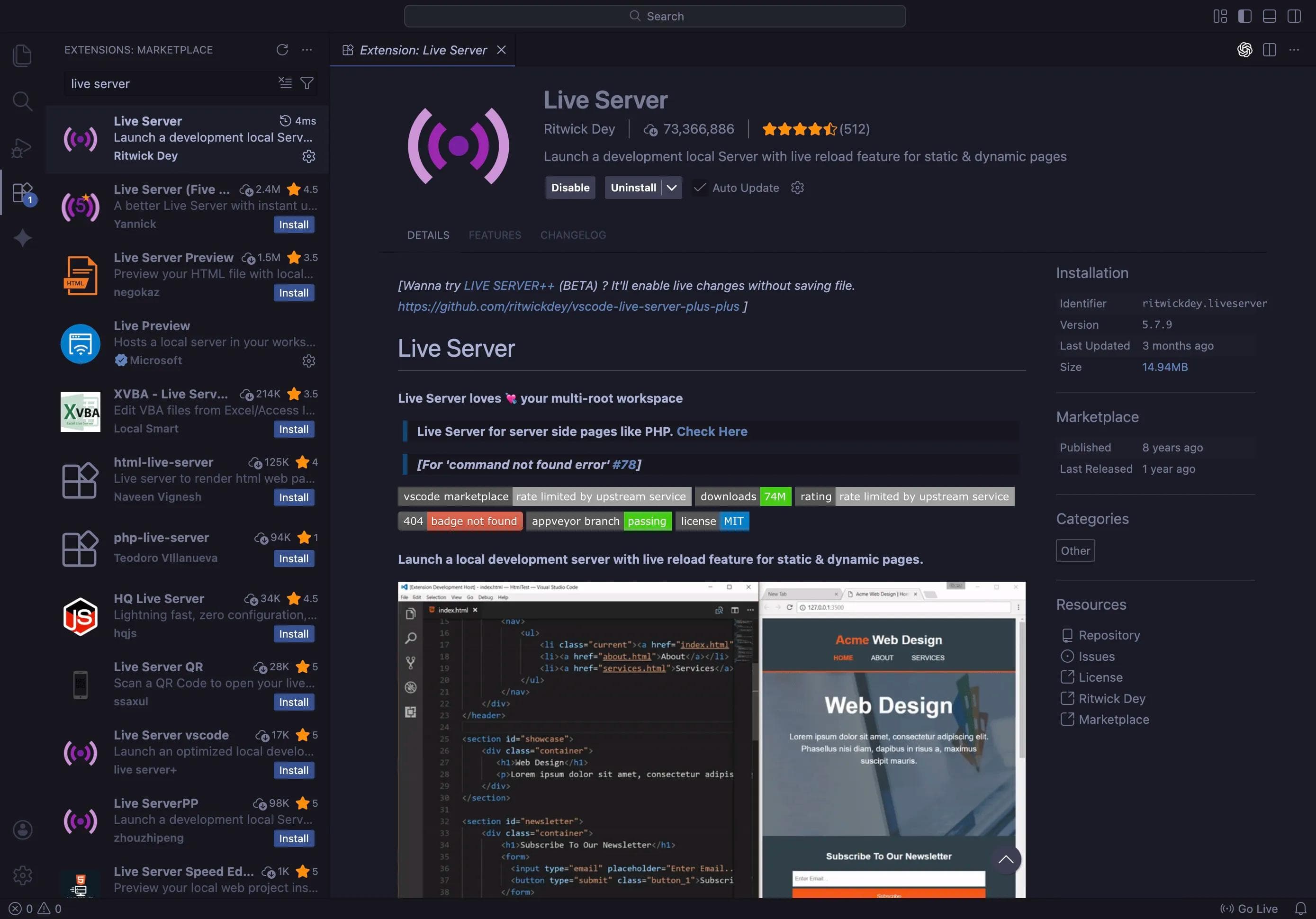
Step 1: Installing VS Code
Let’s get this installed. It is as simple as installing a game.
- Go to the official VS Code Website.
- Download the version for your laptop (Windows, Mac or Linix).
- Install it like any other app.
- Open it up.
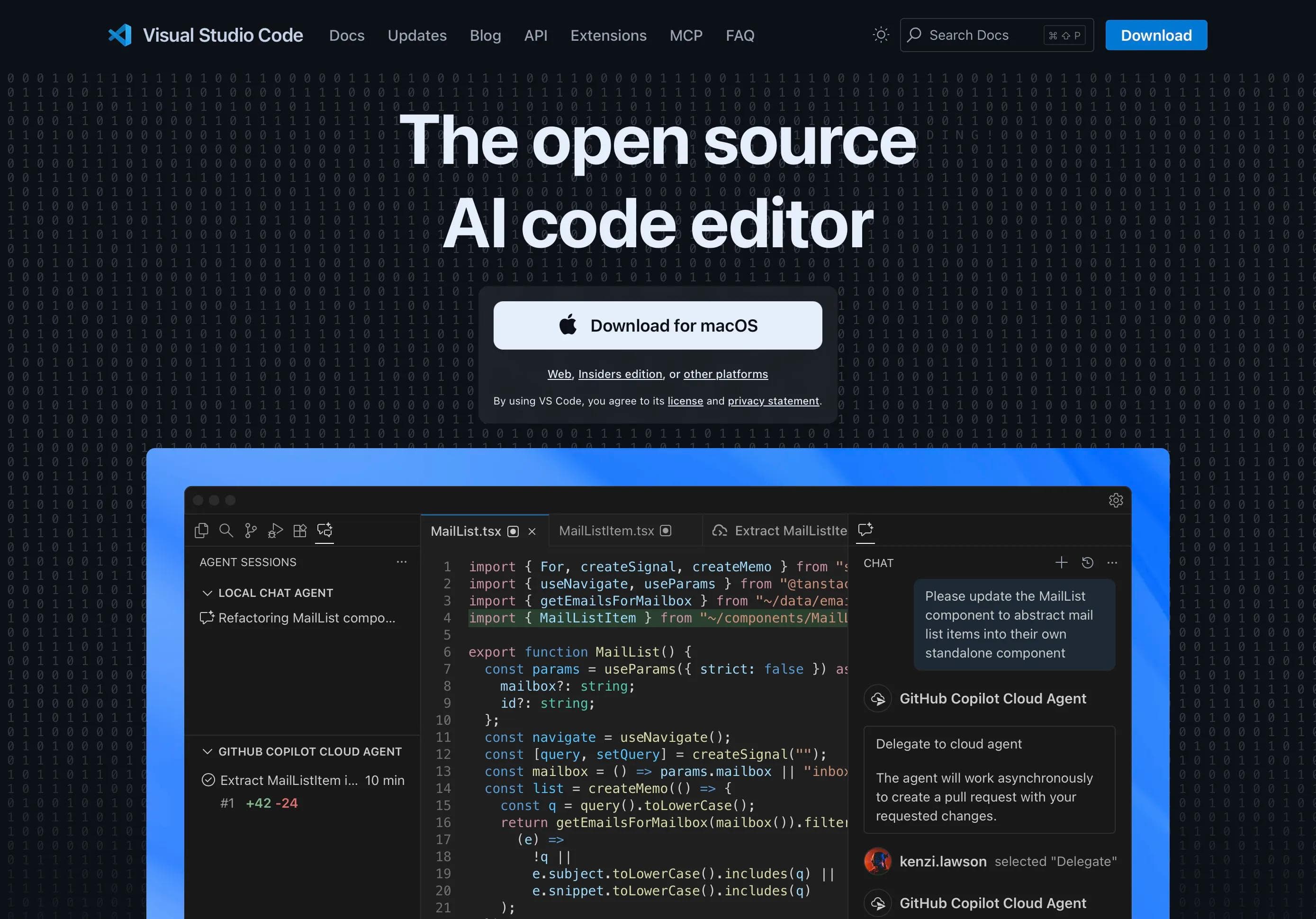
Step 2: The Essential Extension – Live Server
Before we write code, we need to install one essential "Extension" to make our life easier.
The Problem: Without this tool, every time you change a word in your code, you have to save the file, go to the browser, and hit the "Refresh" button manually and if you do this multiple times a day, you will get cooked!
That’s why we’ll an extension called
Live Server. It automatically refreshes the browser the second you save your code.How to Install it:
- In VS Code, look at the sidebar on the left, and click on the icon that looks like blocks (Extensions).
- Search for
Live Server. - Click the blue Install button (The one created by Ritwick Dey).
Step 3: Creating Your First Project
Professional developers are organized, they don't just save files on the Desktop randomly.
- Create a new folder on your computer (Desktop or Documents) wherever you want and name it Web-Learning.
- Open VS Code.
- Go to File > Open Folder and select the new folder that you created (Web-Learning).
- Now click the "New File" icon and name it:
index.html.
Why "index.html"?
You can name your file anything (like xyz.html), but index.html is special. When a server looks at a website folder, it automatically looks for a file named index to show first. It is the "Home Page" of the internet.
Step 4: Your First line of code (Hello World)
That’s it. The moment you officially join the club.
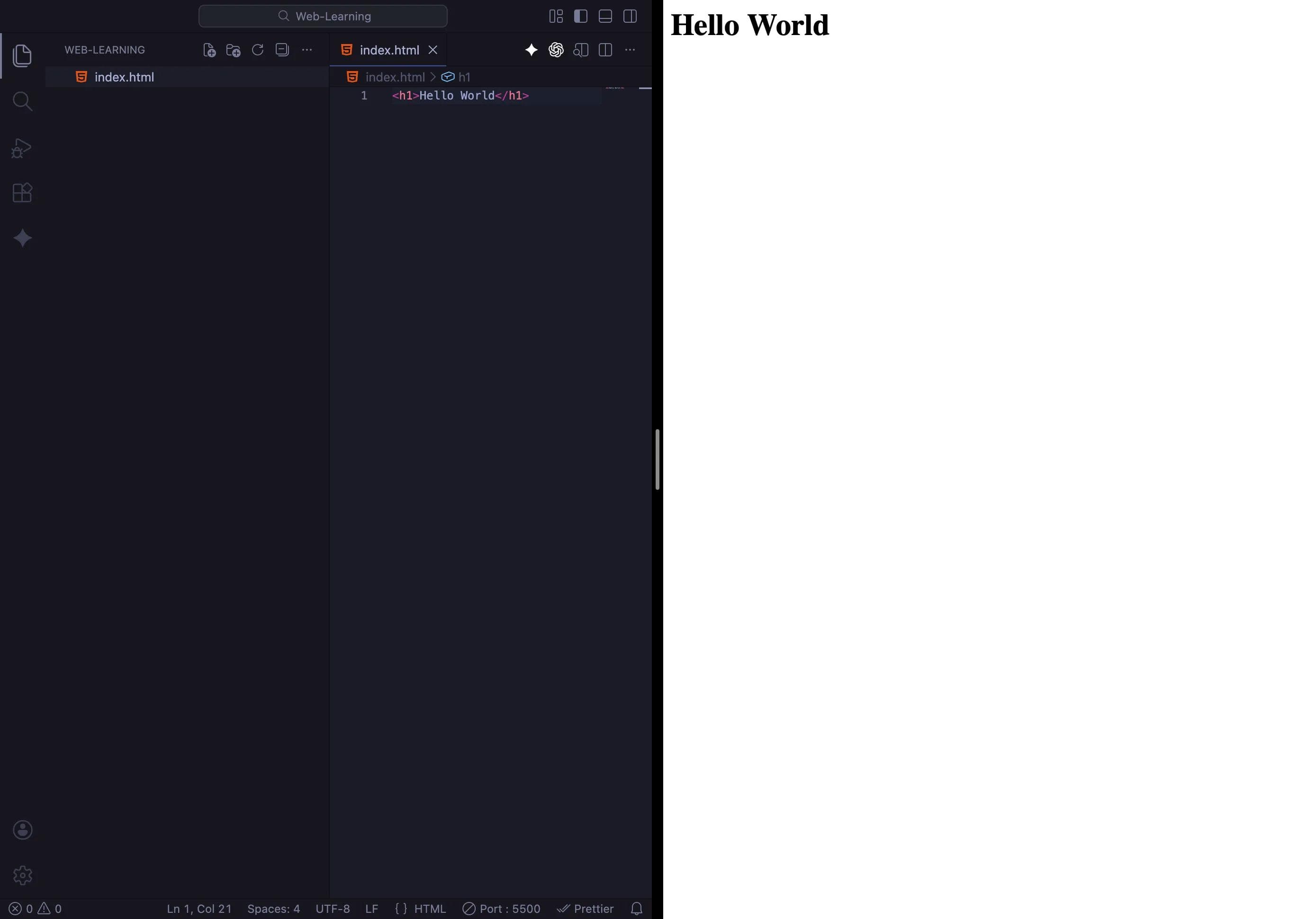
Type the following code exactly as you see it inside your
index.html file:index.html
<h1>Hello World</h1>What did we just write?
<h1>: This is a Tag. It stands for "Heading 1" (The biggest headline).
Hello World: This is the Content (What shows up on screen).</h1>: This is the Closing Tag. It tells the browser, "The headline ends here."
How to Run It:
- Right-click anywhere on your code.
- Select "Open with Live Server."
Your browser should pop open, and you should see a big, bold Hello World.
The AI Angle: A Note on Discipline
VS Code has powerful AI plugins (like Copilot) that can write this code for you. You might be tempted to install them.
Don't. Not yet.
The Gym Analogy!
If you go to the gym and have a robot lift the weights for you, the robot gets the muscles, not you. AI is great for speed, but terrible for learning. For this HTML Series, we will write every character by hand.
If you get an error, copy the error message and paste it into ChatGPT or Gemini to ask
Why is this wrong? — that is smart learning. But do not let AI write the code for you while learning. Although in the upcoming blogs of this Coding Series, we will definitely learn how to properly use AI to generate code, analyze problems and catch mistakes to speed up our progress. But for now, trust your own fingers! ;)Conclusion
Congratulations!
It might look simple — just two words on a white screen, but you have just successfully communicated with a web browser using its native language. You are no longer just looking at the screen; you are controlling it.
What’s Next? "Hello World" is a classic, but let's be honest — it's boring. In the upcoming parts of this Series, we are going to learn the structure of a real website and will build some projects like a proper Profile Card with images and links and much more crazy stuff. We will go step-by-step so even if you don't know the 'C' of coding, still you will be able to master it ;)
You can Read next part from here - READ NOW!
HTML Series: Your First Step in Modern Web Development (2026)
Step 2 of 22